
You can access the FTP account using your Plesk login details, which gives you full access to the home directory. However, if you want to create an FTP user account for a specific directory, you can create a separate FTP account.
- Log in to your Plesk account.
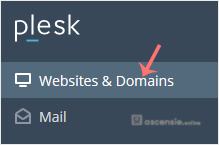
- Click Websites & Domains in the sidebar menu.
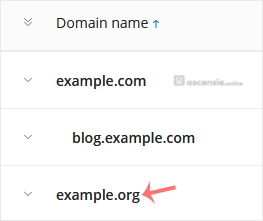
- Under the list of Domain names, click the appropriate domain.
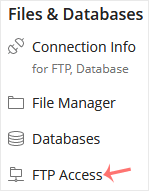
- From the Dashboard, under the Files & Databases section, click FTP.
- Click Add an FTP Account.

- Fill in the following details:
- FTP account name: enter a name such as john. It will be used as an FTP username.
- Home directory: click the directory icon to select the appropriate directory. If you grant access to a sub-directory, the user will not be able to access anything outside the assigned sub-directory.
- Password: enter a password or click Generate to generate one. Click Show to display the password and copy it.
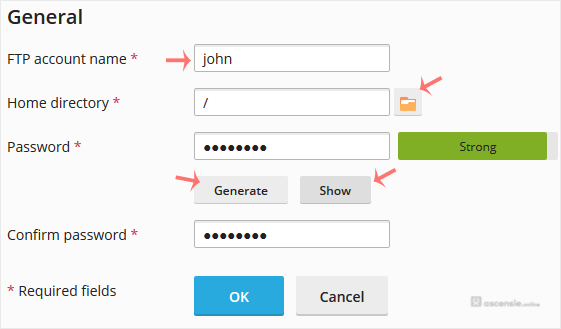
- Confirm with OK.
Now you can access your FTP account using your newly created credentials, for example:
- Host: your website IP address or your website name such as
ftp.example.com. Replace example.com with your website address. - Username: john.
- FTP Port: 21 (default port is 21).
- FTP Password: your FTP password.




Add Comment