
Installing the FileZilla FTP client on Windows is easy. Just follow this tutorial.
- Download the FileZilla FTP client installer for your version of Windows.
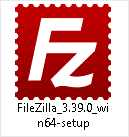
- Double-click to run the FileZilla FTP setup file. If a security warning appears, read and accept it, then click Run.
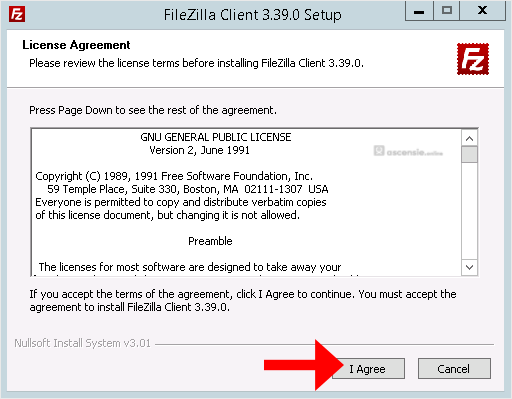
- The FileZilla client shows a License Agreement. Read it and accept the agreement to install the FileZilla client.
- Click Next until the Install option appears, then click Install.
- The installation usually completes in a few seconds, though it may take a little longer depending on your computer's speed. Once it ends, confirm with Finish.
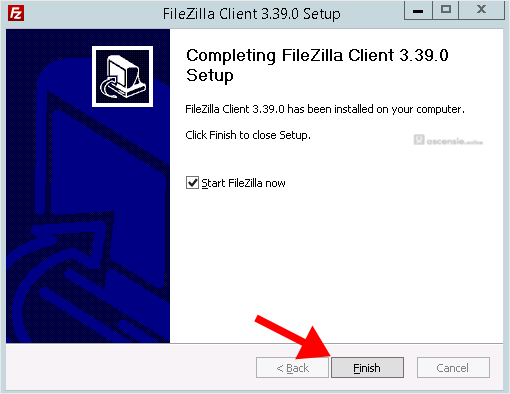
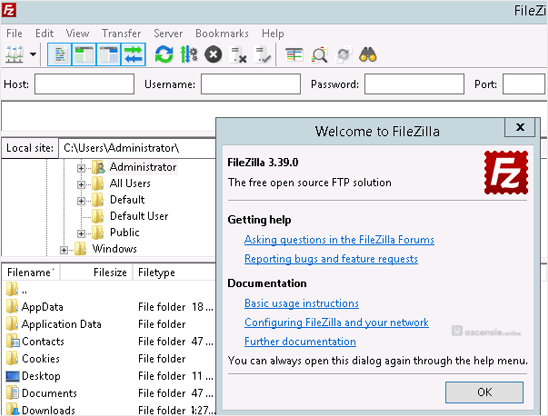
Congratulations. You have successfully installed the FileZilla client on your Windows operating system. You can now start using it.




Add Comment